Why Is My Gaming PC Overheating? Dust, Thermal Paste, and Airflow
Heat quietly drains performance and shortens the life of your parts, and most causes are easy to understand.
October 16, 2026 · 4 min read
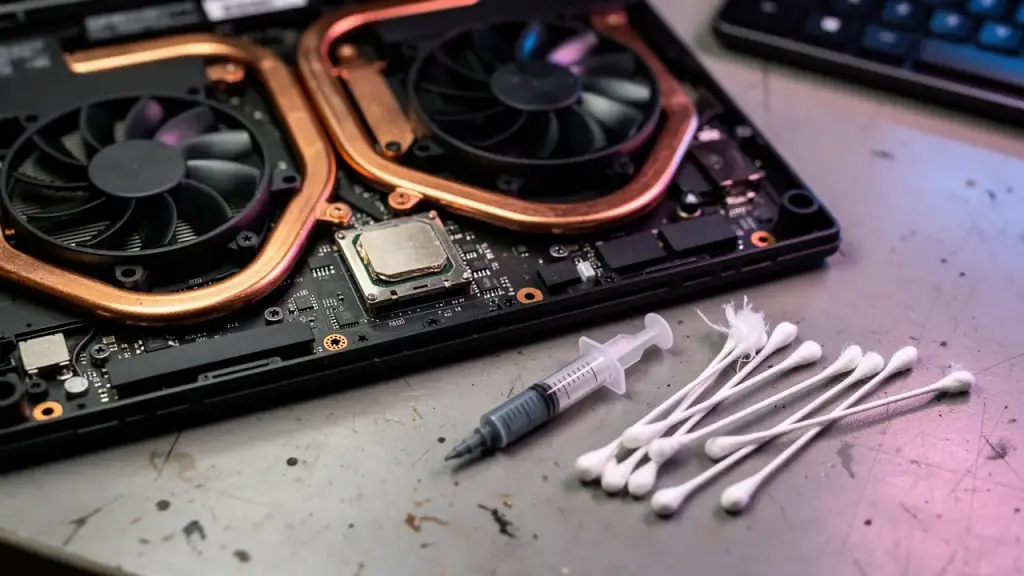
Your game ran smoothly last year. Now the fans roar, the frame rate stutters, and every so often the whole machine shuts off mid-match. It feels like the PC has gone bad, but more often it's just too hot. Heat is the quiet enemy of every gaming computer, and it gets worse a little at a time, so you may not notice until the symptoms stack up.
Here's what causes it, what you can safely check yourself, and when a technician should take over.
How to tell heat is the problem
Modern processors and graphics cards protect themselves. When they get too hot, they slow down on purpose, which is called throttling. That's why an overheating PC often feels like a laggy one. If things get hotter still, the machine shuts itself off to prevent damage.
- Fans that spin loudly during games and stay loud afterward.
- Frame rates that start strong and then drop after a few minutes of play.
- Crashes, black screens, or restarts in the middle of a game.
- Visual glitches or odd colors on screen, sometimes called artifacts.
- A case or laptop base that's too hot to comfortably touch.
Cause one: dust
Dust is the most common culprit. It builds up on fan blades, clogs the fins of the heatsinks, and coats the filters at the front of the case. A thin layer acts like a blanket, trapping heat where you want it to escape. Homes with pets, carpet, or open windows collect it faster.
A careful cleaning helps a lot. Power the machine off and unplug it. Use short bursts of compressed air while holding the fan blades still so they don't spin freely, and keep the can upright. Work outdoors or in a garage if you can. Don't use a household vacuum on the components, since static electricity can damage parts. If you're not comfortable opening the case, a laptop in particular is better left to someone who is.
Cause two: poor airflow
A computer case needs a path for cool air to come in and hot air to go out. Typically, fans at the front pull cool air in and fans at the back and top push warm air out. If that flow is blocked or backward, heat just circulates.
- Check that the fans are pointed in the right direction. The arrows on the fan frame show which way the air moves.
- Make sure the case has breathing room. A machine pushed into a cabinet or against a wall can't pull in fresh air.
- Look for loose cables blocking the airflow path and tidy them out of the way.
- Confirm that all the fans actually spin. A single dead fan can throw off the whole balance.
- Keep laptops on a hard surface. Soft ones like blankets and beds cover the vents.
Cause three: dried thermal paste
Between the processor and its cooler sits a thin layer of thermal paste. It fills the tiny gaps so heat can move from the chip into the heatsink. Over the years that paste can dry out, crack, or pump away from the center, and it stops doing its job.
The telltale sign is a processor that runs hot even when the fans and airflow are fine and the dust is cleaned out. Temperatures that climb quickly the moment a game starts, then level off at a high number, often point here. Graphics cards use paste and thermal pads too, and those age as well.
When a re-paste helps, and when it doesn't
A re-paste means removing the cooler, cleaning off the old paste, and applying fresh paste before reseating the cooler. Done carefully, it can bring temperatures down noticeably on an older machine. It's most useful when dust and airflow have been ruled out and the cooler itself is in good shape.
It won't fix everything. A failed fan, a leaking liquid cooler, a clogged radiator, or a cooler that isn't mounted firmly will keep the machine hot no matter how fresh the paste is. And doing it badly, with too much paste, uneven pressure, or a bent pin, can cause more trouble than it solves. That's why it pays to find the real cause first rather than re-pasting by default.
Small habits that keep temperatures down
Clean the filters and fans every few months. Give the case space. Close background programs you don't need. If your fans run at a fixed speed, a modest fan curve adjustment in the settings can help the cooling respond sooner. Watch temperatures with a monitoring tool so you catch a rising trend early instead of after a crash.
If your gaming PC or laptop is running hot, Computer Paramedics offers Gaming PC & Laptop Support, including thermal re-pasting and airflow tuning, so you get a clear read on what's causing the heat. Call or text Ken at (623) 888-9993, seven days a week from 9am to 6pm, for drop-off or an on-site visit within about 30 miles of Gilbert.
Computer Paramedics, (623) 888-9993
Call (623) 888-9993More articles
Repair or Replace? How to Decide If Your Computer Is Worth Fixing
Age is a poor way to judge a computer; the problem in front of you tells you far more.
Is Your Computer Dying? 8 Warning Signs You Should Not Ignore
Most computers give plenty of notice before they quit, if you know what to look for.